Removing Objects That Touch Another ROI or Multi-ROI
If required, you can automatically remove objects, which can be defined as groups of labeled voxels, within a selected multi-ROI that intersect with an ROI or other multi-ROI.
In the example below, the orange circular objects in a multi-ROI that were touching the blue squares of an ROI were removed.
Before and after removing touching objects
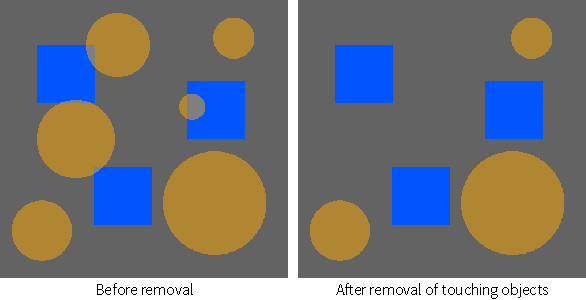
it is usually best to remove empty labels after removing touching objects (see Refine). It may also be necessary to re-analyze the multi-ROI.
How to Remove Objects That Touch Another ROI or Multi-ROI
- Right-click the multi-ROI you need to modify and then choose Refine Region of Interest > Remove Objects That Touch Another ROI or Multi-ROI in the pop-up menu.
- Choose the ROI or multi-ROI that is touching parts of the multi-ROI that you are modifying in the Choose ROI or Multi-ROI dialog.
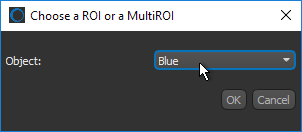
- Click OK.
Touching objects are removed automatically from the selected multi-ROI.

 Product Information